
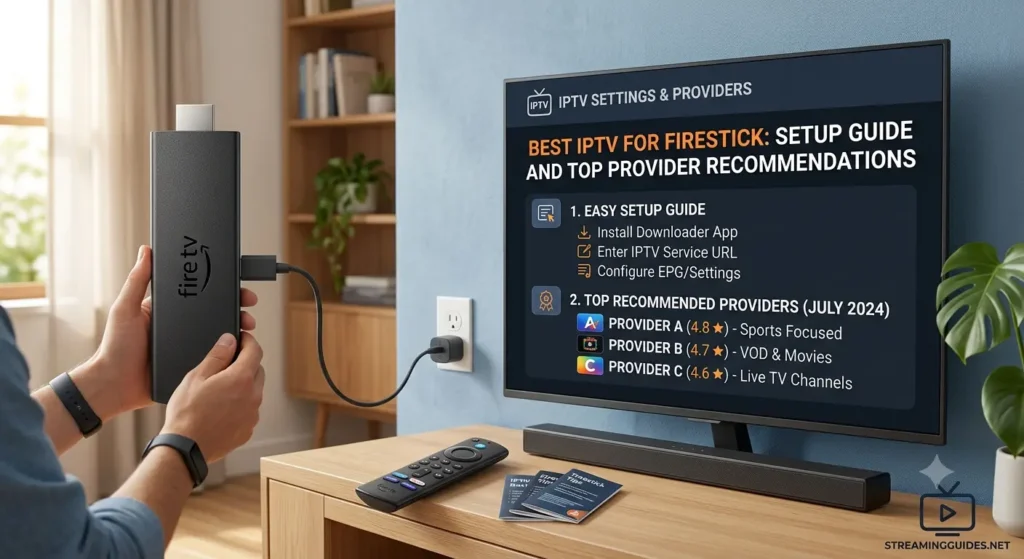
Amazon’s Fire TV Stick is one of the most popular IPTV streaming devices in the world, and for good reason — it is affordable, easy to use, and compatible with a wide range of IPTV apps. If you own a Firestick and want to transform it into a powerful IPTV streaming device, this guide covers everything from choosing the best IPTV service for Firestick to step-by-step setup instructions.
Why Firestick Is Ideal for IPTV
The Amazon Fire TV Stick’s combination of affordability, portability, and performance makes it one of the best devices for IPTV streaming. Running a modified version of Android, Firestick supports sideloading of third-party apps, including popular IPTV players like IPTV Smarters Pro, TiviMate, and Perfect Player — apps that are not available on the official Amazon App Store but can be installed with minimal technical knowledge.
Firestick 4K models support Ultra HD streaming, making them suitable for watching 4K IPTV content provided your internet connection and IPTV subscription support it. The device’s quad-core processor handles high-resolution streams smoothly, and its Wi-Fi 6 support (on newer models) reduces buffering on wireless connections.
The Alexa voice remote built into Firestick adds a layer of convenience, letting you navigate menus and switch channels hands-free. With HDMI connectivity, it plugs directly into any modern TV, transforming even an older non-smart television into a capable streaming device.
How to Set Up IPTV on Firestick
Setting up an IPTV service on a Firestick is straightforward. First, enable installation from unknown sources: navigate to Settings > My Fire TV > Developer Options and toggle on ‘Apps from Unknown Sources.’ This allows you to sideload third-party IPTV apps. For a complete walkthrough, visit the How to Use guide on the BestIPTV.Solutions website.
Next, download the Downloader app from the Amazon App Store. This browser-based app lets you download APK files directly to your Firestick. Enter the download URL for your preferred IPTV player — IPTV Smarters Pro and TiviMate are the most popular choices for their intuitive interfaces and robust feature sets.
Once your IPTV player is installed, enter your subscription credentials — typically a username and password along with your provider’s server URL, or an M3U playlist link. Within seconds, your full channel lineup will populate and you are ready to stream.
Tips for the Best Firestick IPTV Experience
For the smoothest IPTV experience on Firestick, consider clearing the device’s cache regularly. IPTV apps can accumulate significant cached data that slows performance over time. Navigate to Settings > Applications > Manage Installed Applications, select your IPTV app, and clear the cache monthly.
Using a VPN on your Firestick is recommended for both privacy and performance reasons. A VPN routes your traffic through an encrypted server, preventing your ISP from throttling your streaming bandwidth — a common practice that affects many IPTV users. If you need setup help, the Help center has device-specific troubleshooting guides.
For optimal picture quality, connect your Firestick directly to your router via Ethernet using an Ethernet adapter dongle. This eliminates Wi-Fi interference and delivers a more stable, faster connection that directly benefits stream reliability.
Choosing the Best IPTV Service for Firestick
The best IPTV service for Firestick is one that offers Firestick-native app support or reliable M3U/Xtream Codes compatibility, a broad channel selection, stable streams, and good technical support for device-specific setup questions. Browse the full channel list to confirm your favorite networks are covered.
BestIPTV.Solutions is fully compatible with all Fire TV Stick models and works seamlessly with leading Firestick IPTV players. The service offers straightforward setup guides, dedicated support for Firestick-related configuration, and streams optimized for the hardware capabilities of the device. Whether you are using a standard Firestick, Firestick 4K, or Fire TV Cube, BestIPTV.Solutions delivers a premium streaming experience that fully utilizes your device’s capabilities. Ready to get started? Visit the Buy Now page to choose your plan.